We will be using Flask to read a particular csv file (which is acting like a database here) and return that to a Front-end HTML route (don't panic, its a technical name for a specific URL) using Flask.
Starting a virtual environment
Before looking at the Flask code and you trying to run it in your side, Lets have a look at making virtual environments so that our Project is not subject to version changes (some functions that we use may deprecate down the line, so we use virtual environments to be on the safer side).
I usually create a virtual environment whenever I do something in Flask.
Steps to create a virtual environment
Install virtualenv package using the pip command. This helps to create, manage and run virtual environments using simple command line interface.
pip install virtualenvNow open terminal and navigate to your project folder
mkdir iot_mini_project
cd iot_mini_project
Create a new virtual environment using virtualenv by specifying a name. I usually prefer to keep it env.
virtualenv <your_env_name>Now that you have created the virtual environment, you still haven't accessed it yet (by this I mean, you haven't set your intrepreter for python as the one in the virtualenv that was created, your'e still using your global python that's installed). Now to run the virtual environment, use
In case if your'e using powershell
.\env\Scripts\activate.ps1In case of Windows command prompt
.\env\Scripts\activateIn case of Linux (Raspbian OS)
source venv/bin/activateYou now have started the virtual environment, you can check if its so by looking at the present working directory in the terminal:
Before starting the virtualenv
C:\iot_mini_project>After starting the virtualenv
(your_env_name) C:\iot_mini_project>Now you can install the necessary libraries, this would be installed in the virtual environment, and not in the global python install. For this example, we would requiring Flask and Pandas.
pip install Flask pandasOnce, your'e done with this, you can move on to the actual Flask code.
Code used
Flask program
Named ref_code.py (or anything that you wish to)
Create a folder named "templates" (it is important you don't change the name of this folder!) and a python file with name of your liking. The folder structure of your project directory should look something like..
   │   ref_code.py
   │
   └───templates
           table_render.html
Flask Code:
# import the necessary libraries
from flask import Flask, jsonify, render_template
import pandas as pd

"""
    We use jsonify to return a json format of our dataframe (could be used for plotting further in JS)
    render_template is used to return a HTML file when a particular URL is requested by the user
"""

app = Flask(__name__) # Creating the Flask application instance

@app.route("/") # Home page route
def homepage():
    """
        This is just a simple home page route
        this returns the HTML text Hello World when hit at this "/" root URL
    """
    return "<h1>Hello world</h1>"

@app.route("/api/get_table/") # this could be used for API access (but gives HTML data as response)
def get_table_data():
    """
        Used for getting the dataframe as a HTML table content
        returns the dataframe as HTML when requested at the URL /api/get_table/
    """
    df = pd.read_csv("dataset.csv")
    return df.to_html()

@app.route("/table_render/")  # this could be used for rendering a static HTML page when this route is hit
def table_render():
    """
        Renders the HTML content with the Table contents (check table_render.html for more info!)
        returns the dataframe as HTML when requested at the URL /table_render/
    """
    df = pd.read_csv("dataset.csv")
    return render_template("table_render.html",table=df.to_html())

@app.route("/api/get_table_json/") # this could be used for API access for plotting
def get_table_json():
    """
        Used for getting the dataframe as a JSON content
        returns the dataframe as HTML when requested at the URL /api/get_table_json/
    """
    df = pd.read_csv("dataset.csv")
    return jsonify(df.to_json())

if __name__ == "__main__": # Used to run the application
    app.run(debug=True) # Keeping Debug as True provides Hot-reloading feature!
    # By default the app runs at port number 5000
table_render.html file
<!DOCTYPE html>
<html lang="en">
<head>
    <meta charset="UTF-8">
    <meta http-equiv="X-UA-Compatible" content="IE=edge">
    <meta name="viewport" content="width=device-width, initial-scale=1.0">
    <title>Data Table</title>
</head>
<body>
    <h1>Hello - Checkout my dataset</h1>
    {{table|safe}} <!-- Using |safe is important to render the table as HTML -->
</body>
</html>
Running the Python file
Just type
python .\<your_app_name>.pyNotice that the Application has started running in the Local Host IP (127.0.0.1:5000) at the port number 5000
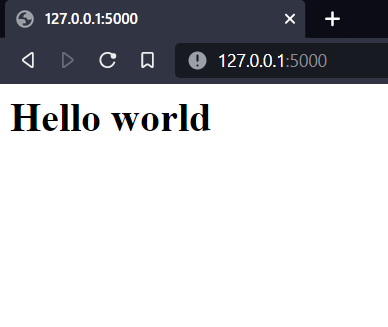
If you open your browser and go to 127.0.0.1:5000/ You will be greeted with the "Hello World!" message!
Congrats if its your first time running a Flask application!
Homepage at 127.0.0.1:5000/ looks like
The HTML table which will be rendered on the page can be accessed at
127.0.0.1:5000/table_render/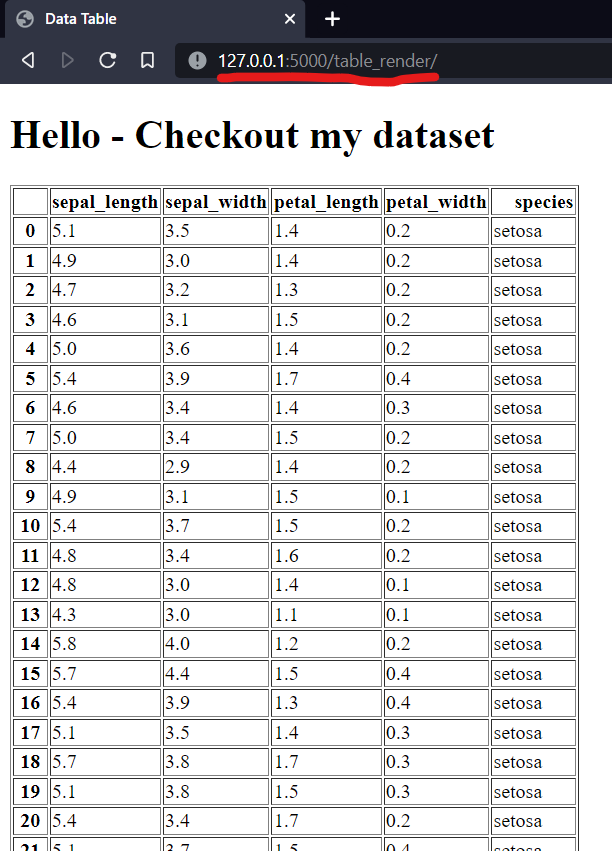
The HTML table can also be accessed as an API at
127.0.0.1:5000/api/get_table/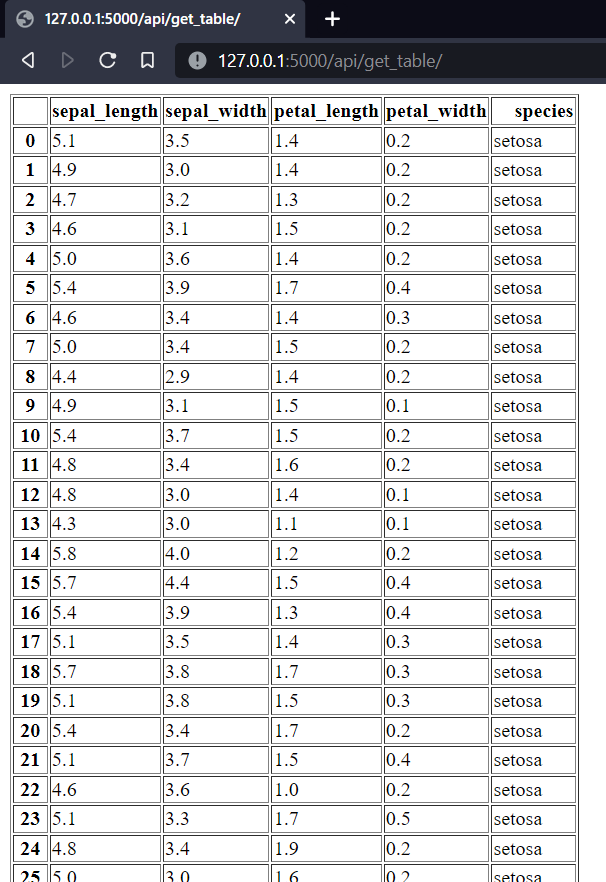
I hope you can check the difference between the previous two methods, The
/table_render/renders a HTML page with the Table content. So you can have other HTML content on that page with this Table.
Meanwhile/api/get_table/just returns the table in a HTML format!In case if you want the table content in JSON format which would be very useful in case of plotting using JS libraries, then you can get the JSON data at
127.0.0.1:5000/api/get_table_json/. Hit me up if you need some help with that as well!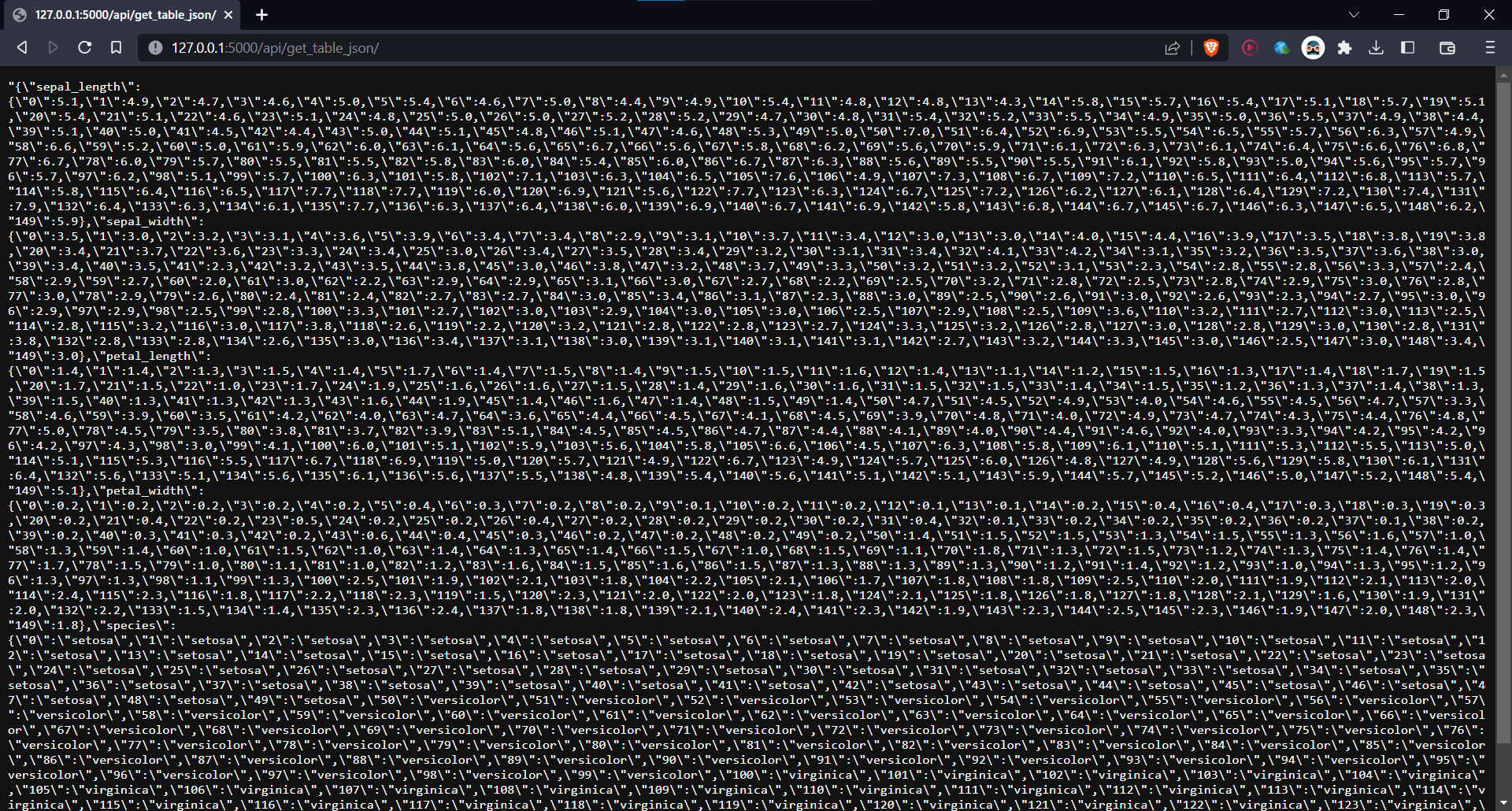 Looks cryptic ikr!
Further improvements
Now this application runs in the local host meaning the application cant't be accessed by devices that are connected to the same network.
To access the application from devices connected in the same network,
just change the app.run(debug=True) in the flask python file to app.run("0.0.0.0",debug=True)
Passing 0.0.0.0 as a parameter, would allow the Flask application to listen to URL requests from all the networks that it is connected to. Usually its the localhost and a network IP (when connected to a network) Use the same python .\<your_app_name>.py to start your application.
You can see the network IP like so.. (Im hiding it here for obvious reasons)
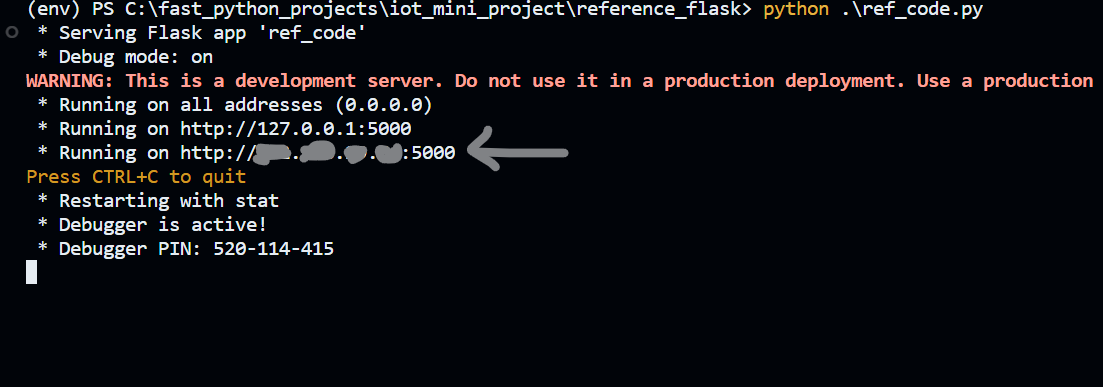
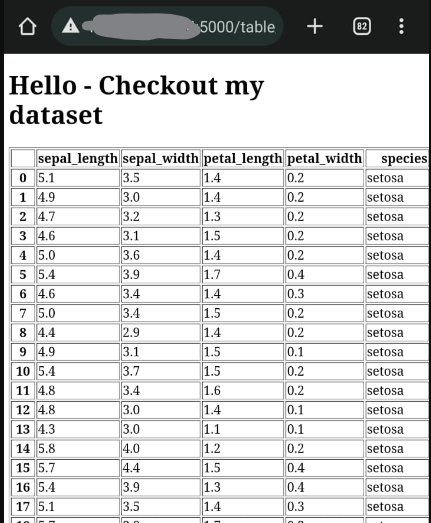
If you connect your phone to the same network as your Raspbery Pi (when youre running the flask app in RPi), you can access the application at the link that is shown in the command line.
An example of accessing the application from my phone!